
Animate an object
Add an entrance, exit, emphasis, or motion path and check when it plays.
Add an entrance or exit
- Select an object such as a shape, image, or text box on the canvas.
- In the right-hand Design panel, expand Animations. Choose Entrance… to add an effect when the object appears. Arc starts with Fade. Use the preset picker to choose another effect.
- Set the Duration. Some effects also give you options such as Direction and Distance.
- Choose Exit… if you want a separate effect before the object disappears.
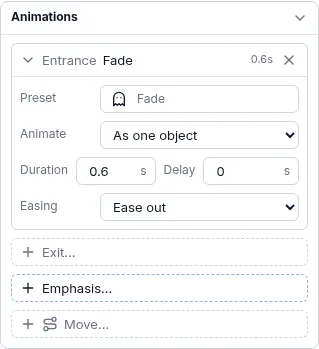
For a text box, use Animate → By paragraph in the entrance settings to reveal paragraphs or bullets one at a time.
Draw attention or move across the slide
- Choose Emphasis… to draw attention to an object while it is visible. Try Pulse and use Start to place it at the right moment.
- Choose Move… to move an object along a path. Set the playhead to the time you want movement to begin before adding the move, then choose a Path preset and set the Duration. Use Edit path on canvas to adjust the route.
Check when it plays
An entrance starts at the object’s start time by default. An exit plays before the object’s end time. To change when the object is on screen, adjust its bar in the Timeline. The Timeline also shows animation chips on the object’s row. Select a chip to open its settings in Design.
Use Preview this slide to check when effects begin and whether learners have time to read or use the object before it disappears. If an entrance should begin when a narrator mentions the object, sync the object’s start to the audio.