
Sync objects to audio
Time images, shapes, and text to a sentence, a spoken word, or a spot in a recording.
Make an object appear when the narrator mentions it
- Put the narration and the object on the same slide layer. Select the object and choose Align above the Timeline.
- Under Move, choose Move start to move the whole object bar while keeping its duration. To leave the end where it is, choose Set start under Adjust instead. Hover over an icon to see its label.
- On the narration’s caption row, choose a sentence to align with its start. For a specific word, choose Lens beside the sentence, then pick the word. You can also switch from Sentences to Words and choose the word in the Timeline.
- Choose Done, then use Preview this slide to hear the narration and check the timing together.
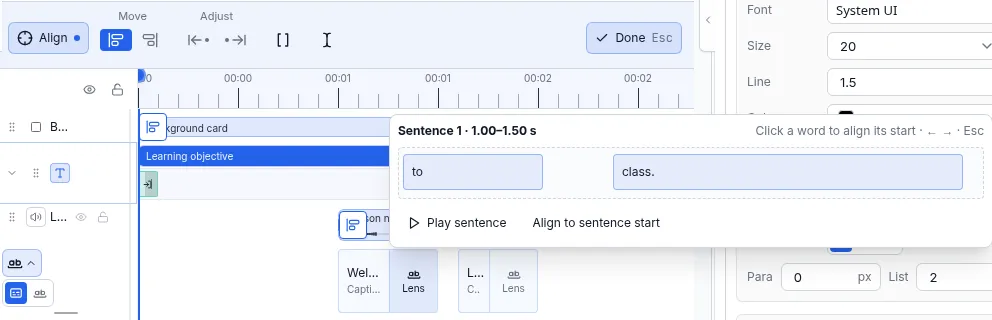
To set when the object disappears, choose Set end and pick a sentence or word. Arc uses the end of that sentence or word. If the object has an entrance animation, its duration affects when the object becomes fully visible.
Align audio without timed captions
- Play the slide and pause near the sound you want to match. Move the playhead to the exact spot on the Timeline ruler.
- Select the object and choose Align → Move start, then use the playhead button labeled Move start to playhead. Choose Done when you’ve finished placing objects.
- Preview the slide to check the result. This works with music, sound effects, and narration with no captions. Audio that starts from a trigger has a variable start time, so test the learner action that plays it.
Reveal paragraphs in step with narration
Select a text box, open Design → Animations → Entrance, and set Animate to By paragraph. Choose Sync paragraphs to narration. Arc uses word timings from narration on the same layer and matches the opening words of each paragraph in order. Review how many paragraphs matched and preview the slide. Paragraphs that don’t match keep their current timing.
If the caption row has sentences but no timed words, you can still align to sentence boundaries. If the recording was replaced or the caption timing needs review, realign its transcript in the audio editor or use the playhead method.