
Preview a slide or a course
Test timing, learner controls, and navigation before you publish.
Choose a preview mode
Open Preview options beside Preview in the editor.
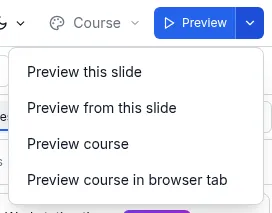
- Preview this slide plays only the current slide. Use it to check timing and layout.
- Preview from this slide starts on the slide you are editing and lets you move through the course. Use it for links and slide jumps. This is also the main Preview button’s action.
- Preview course starts at the beginning.
- Preview course in browser tab opens the full course in a new tab.
Check what learners can do
Play through the slide in the preview. Click the course’s buttons and check both the action and resulting screen. For a quiz or a branching course, start a fresh preview to try a different choice. Use a test learning management system to check completion, scores, and resume behavior after you publish a SCORM package.
Check keyboard navigation before you publish.