
Make a button jump to another slide
Add a click trigger that takes the learner to a specific slide.
Set up the trigger
- Create the destination slide so it appears in the slide picker.
- Return to the starting slide, add a button with Add Button, and keep the button selected.
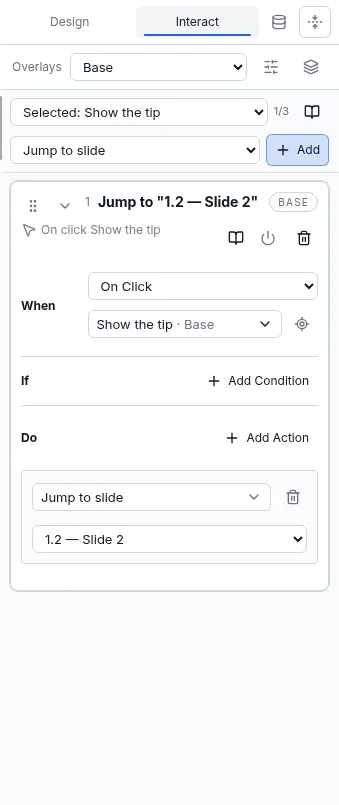
- Open Interact in the right-hand panel. In the Trigger template list, choose Jump to slide, then choose Add.
- In the trigger editor, check that the event is On Click and points to your button. Under Do, choose the destination slide. The template may select a target for you, so check its name.
- Changes apply as you edit. Choose Collapse trigger to close the card.
Try the button
With the starting slide active, open Preview from this slide from Preview options. Click the button in the preview and check that the destination appears. If the button does nothing, return to Interact and check the event target, the destination slide, and whether the trigger is enabled.
For a simple link to another slide, webpage, or email address, see Link text or a button.