
Link text or a button
Open a webpage, jump to another slide, or start an email from a course.
Link words or a button
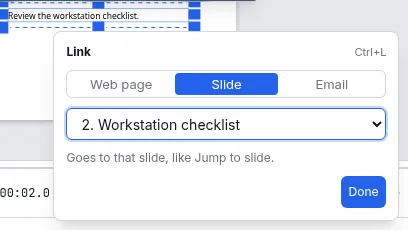
- To link words, double-click the text box and select the words. Choose Link in the floating text toolbar. To link a button, select it on the canvas and choose Link in its toolbar. Ctrl+L (Command+L on Mac) can also open the link editor.
- Choose Web page, Slide, or Email. Enter the web address, pick a destination slide, or enter an email address.
- Choose Done.
Use words that tell learners what will open, such as “Read the safety policy.”
Test the destination
Start Preview and activate the link. A web link opens a new tab. A slide link moves within the course. An email link opens a draft in the learner’s configured email app. Test the link again after publishing, especially if the course runs inside a learning management system.
For a button that runs several actions or uses a condition, see Make a button jump to another slide.